> For the complete documentation index, see [llms.txt](https://help.inveterate.com/help-center/llms.txt). Markdown versions of documentation pages are available by appending `.md` to page URLs; this page is available as [Markdown](https://help.inveterate.com/help-center/guides/account-widget/merchant-guide.md).
# Merchant Guide
## Getting Started
To enable the Account Widget in your storefront, please see the following instructions.
### Enable the feature for your Inveterate account
Log into the Inveterate Merchant Dashboard and in the main navigation click the "Widget" item. On the page that opens, click the button to turn the feature on and you will then be redirected to the actual "Settings" subpage. If you see editable settings, you have successfully enabled the feature for your account.
### Enable customer login
This feature supports both the new Shopify customer accounts experience and legacy customer accounts. Follow the instructions below for the version your store is currently using.
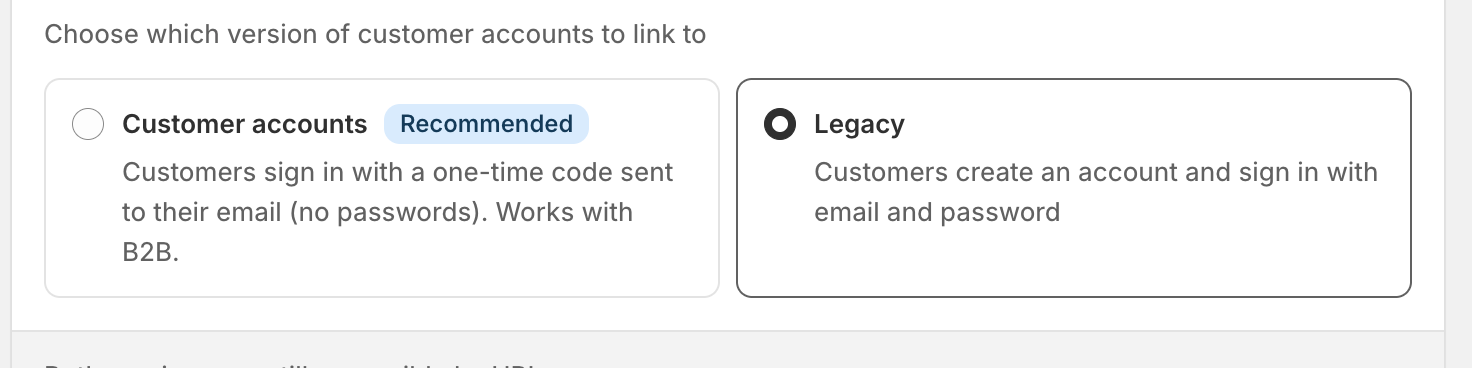
To check which version your store is using, go to **Settings > Customer Accounts** in your Shopify admin. If you do **not** see the warning shown below, your store is using the new customer accounts experience.
Within the Inveterate dashboard on the [Widget > Settings > Customer account settings](https://dashboard.inveterate.com/widget/multipass) page you will need click the "Sync version" page so that our system can determine which Shopify customer accounts version you're using. Do this if you see a page telling you to sync or if our system is showing the incorrect version (usually happens if you change versions after you've already done this step). Once synced, you will either see settings for new or legacy customer accounts that need to be filled in for the widget to log customers in properly. See the following instructions that match your Shopify customer accounts version.
#### New Shopify Customer Accounts Setup
To enable login via OAuth, please follow these steps:
1. Open your Shopify admin
2. Navigate to Settings > Sales channels
3. Look for the Headless app. Skip to step 5 if it's already installed
4. Install the [Headless app](https://apps.shopify.com/headless) from the Shopify app store
5. Back on the Sales channel page, click into the Headless app
6. Click "Create storefront"
7. Rename to "Inveterate Widget Login"
8. Next to Customer Account API, click "Manage"
9. Edit the client type, changing it from "Public" to "Confidential" and save
10. Copy the client id and client secret credentials and paste them into their corresponding fields within the Inveterate dashboard and save. See the following example of what the credentials should look like within the Shopify Headless app.
11. Back in the Headless app, scroll down to the Application setup section and click the edit icon
12. In "Callback URI's" add the following url `https://da1va1tepj1z3.cloudfront.net/api/v1/account/shopify-customer/oauth/callback`
13. In "Logout endpoint" add the following url `https://da1va1tepj1z3.cloudfront.net/api/v1/account/shopify-customer/post-logout`
14. Click save and your setup is complete
{% hint style="warning" %}
**Note:**
Once setup is complete, perform a hard refresh of your storefront before testing the login experience as a customer. Browser caching can sometimes prevent the latest Account Widget changes from appearing immediately.
* **Windows:** `Ctrl + F5` or `Ctrl + Shift + R`
* **Mac:** `Command (⌘) + Shift + R`
{% endhint %}
#### (Deprecated) Legacy Shopify Customer Accounts Setup
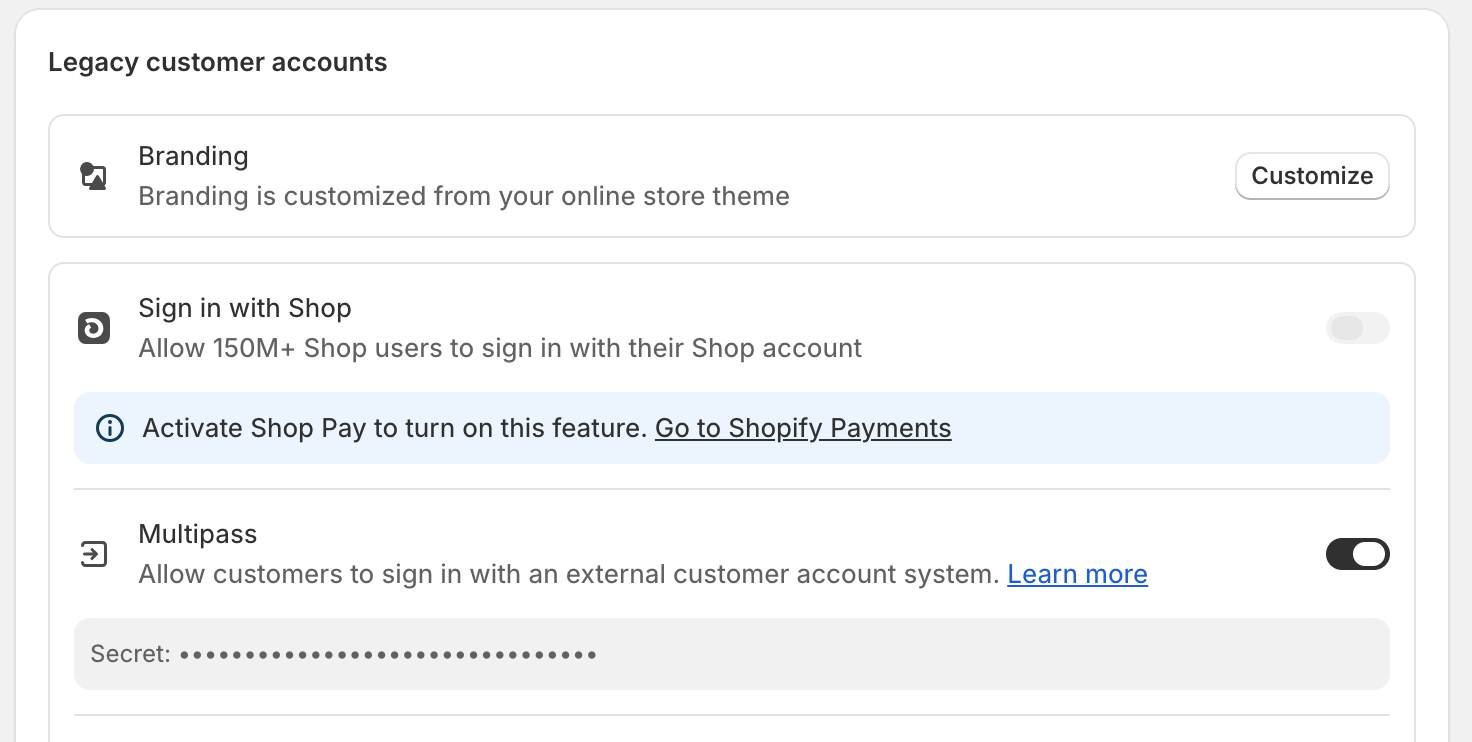
Enable customer login via multipass - After enabling the feature, you will be directed to the Multipass Settings subpage. To enable customer login, you will need to provide your Multipass Secret. This is a required step to use the widget. To find your multipass secret:
1. Open your Shopify admin
2. Navigate to Settings > Customer Accounts
3. Make sure Legacy is selected
4. Scroll down to the Legacy customer account settings
5. Enable Multipass if it's not already enabled
6. Copy the secret and paste it into the Shopify Multipass Secret field in the Inveterate merchant dashboard and save
### Add widget JS/CSS to your site
It is best to do this in a theme that isn't live to your customers so that you can test it before releasing it. In your Shopify admin on the Online Store page, go to your main theme and click "Duplicate". This will create an exact copy with all of your customizations that you can use for this step and the next one.
In the new them you created, select the Edit Code option to be taken to the theme code editor. In the `Snippets` folder, create a new file called `inveterate-account-widget.liquid`. In that file add the following code snippet:
```liquid
{%- if customer -%}
{%- else -%}
{%- endif -%}
```
Save the file and then navigate to the `layout/theme.liquid` file and add the following code directly above the closing `` tag.
```liquid
{%- render 'inveterate-account-widget' -%}
```
This will actually the code to your theme, making it available in the frontend.
Finally, you need to update the user account icon to open the widget rather than directing customers to the Shopify account templates. This is theme specific, so this will be a generalized explanation.
You will likely find a file with either "header" or "navigation" in the title. First check the sections folder and then check the snippets folder if you can't find it. Make sure it's a .liquid filetype and not .json when in the sections folder. Then you'll want to find the "customer" or "account" icon and it's surrounding `` html tag. In the `` tag, delete everything in the `href` property and replace it with `#iaw_display`. Yours will be different, but it should look something similar to:
{% hint style="info" %}
It's possible, depending on your theme, that there is a second user icon specifically for mobile. If this is the case for your theme, make sure you update that one as well.
{% endhint %}
### (Optional) Add wishlist button to product pages
For the best results it's best to add an "Add to Wishlist" button to your product pages. To make this process as easy as possible, Inveterate provides a [Shopify App Block](https://shopify.dev/docs/storefronts/themes/architecture/blocks/app-blocks) that enables this functionality in just a few clicks.
To add this app block, go to the theme editor and navigate to the product page. **This app block is** **only available** **on product pages**. Under the Template section you can either click "Add Section" or add it as a block to one of your existing app block supported sections. Select "Apps" in the popup window and you'll see a list of app blocks, one of them being the Inveterate Add to Wishlist block. Depening on your theme, if you have app block supported sections, you will be able to add the block
In the screenshot above, I'm adding it to the Product information section as a block and I end up moving it to display below the Buy buttons and above the Description. Where you add it will depend on your theme and it's level of app block support.
### (Optional) Add wishlist stars to product cards
If you intend to use wishlists you need to add a way for your customers to add products to their wishlist. This is the simplest method for adding wishlist stars to product cards, but developers will be able to more deeply integrate this feature into your site.
In the theme you created earlier, create a new file in the `snippets` folder called `inveterate-wishlist-heart.liquid`. In that file add the following code snippet:
```liquid
```
As a brief explanation of what this file is doing, it's creating a heart icon SVG that when clicked will run the `addToWishlist()` function provided in the widget frontend API and then open the widget. The file itself takes an `iaw_product` variable that can be passed into the liquid snippet when it's initialized.
To add this icon to product cards, you will need to locate your product cards file in your theme. This will likely be found in the `snippets` folder. Then you will need to identify the liquid variable that's being used for the product within the file. In my case, it's called `card_product`. In your case it may be named differently. Add the following code snippet within the product card code:
```liquid
{% render 'inveterate-wishlist-heart', iaw_product: card_product %}
```
As mentioned before, you will need to change `card_product` to whatever it's named in your theme file. This will add a simple heart icon to your product tiles that when clicked will simply add the product to the customers "main" wishlist and open the widget to the wishlist view.
## Customization
To customize the widget, you will find a plethora of settings within the Inveterate Merchant dashboard giving you the ability to add your logo, change colors, edit button styles and more. The widget is also fully integrated into your Shopify storefront so you can add your own custom CSS to make sure the widget perfectly fits your store's aesthetic.
## Dev Documentation
For developers, please see our [Dev Documentation](https://help.inveterate.com/dev/stack-reference-docs/account-widget-frontend-api) for more information on how to interact with the widget with your code.